How to install SinusBot MusicBot for TeamSpeak 3 or Discord?
This instruction describes the installation of SinusBot on the Discordbot VPS service using Docker on Ubuntu 24.04.
It is recommended to perform the instructions below on a clean server, right after (re)installation. Click Reinstallation in the panel to do this.
Installing Docker
Enter the command
apt update &&\
apt install apt-transport-https ca-certificates curl software-properties-common -y &&\
curl -fsSL https://download.docker.com/linux/ubuntu/gpg | sudo gpg --dearmor -o /usr/share/keyrings/docker-archive-keyring.gpg  &&\
echo "deb [arch=$(dpkg --print-architecture) signed-by=/usr/share/keyrings/docker-archive-keyring.gpg] https://download.docker.com/linux/ubuntu $(lsb_release -cs) stable" | sudo tee /etc/apt/sources.list.d/docker.list > /dev/null &&\
apt update && apt install docker-ce -y
Check the installation correctness - the command below should return active
systemctl is-active docker
Installing the Sinusbot container
Check available ports in the panel
Go to the Dashboard tab and check what ports you have in the Available TCP ports section:
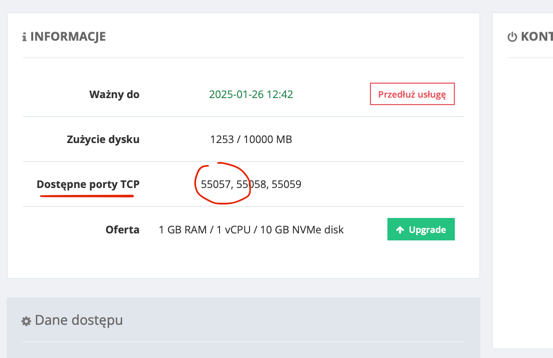
In the given example, the first port was taken - 55057. It will be used in the rest of the tutorial.
Warning! For you, this port will be different, you need to replace it in the command below. Don't copy the command without editing it.
Run the Sinusbot container using port 55057
Create the directory structure:
mkdir -p /root/sinusbot/data /root/sinusbot/scripts
Warning! Replace port 55057 with your own.
docker run -d -p 55057:8087 \
--restart=always \
-v /root/sinusbot/data:/opt/sinusbot/data \
-v /root/sinusbot/scripts:/opt/sinusbot/scripts \
-e UID=$(id -u ubuntu) \
-e GID=$(id -g ubuntu) \
--name sinusbot sinusbot/docker
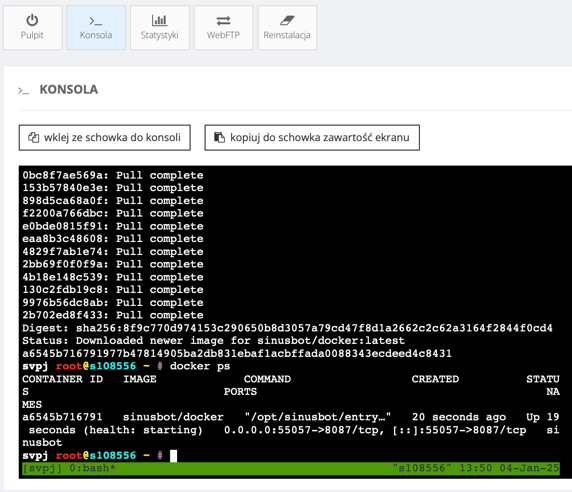
Log in to the Sinusbot web panel
Check the IP address of our service, in the example it is discordbot.svpj.link
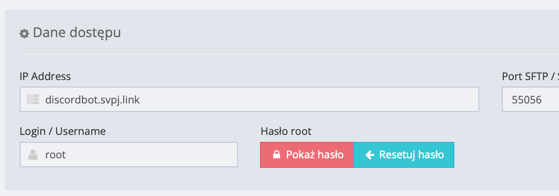
Append to the end of the service address the port we chose earlier 55057 and we have the web panel address:
discordbot.svpj.link:55057
Warning! In your case, the address will be different!
After pasting the web panel address in the browser, we get the view:
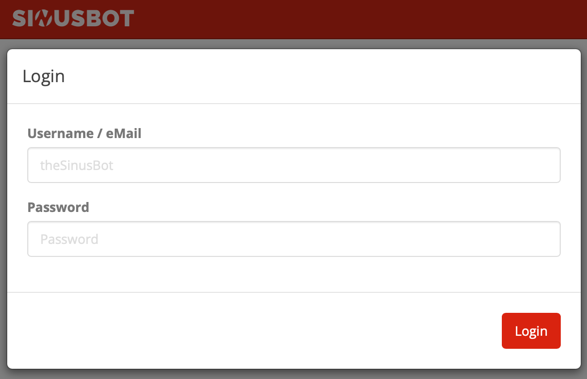
Username is: admin, the password should be read from the Sinusbot container logs, enter the command:
docker logs sinusbot 2>&1 | grep admin

In our example, the password is S13yObBd.