How to Change File Permissions (chmod)?
What are File Permissions?
File permissions (chmod) determine who and how can use files and directories on the server. Each file has three types of permissions:
- Read (r) - ability to view contents
- Write (w) - ability to modify the file
- Execute (x) - ability to run the file as a program
Permissions are assigned to three user groups: owner, group, and others.
Changing Permissions in FileZilla
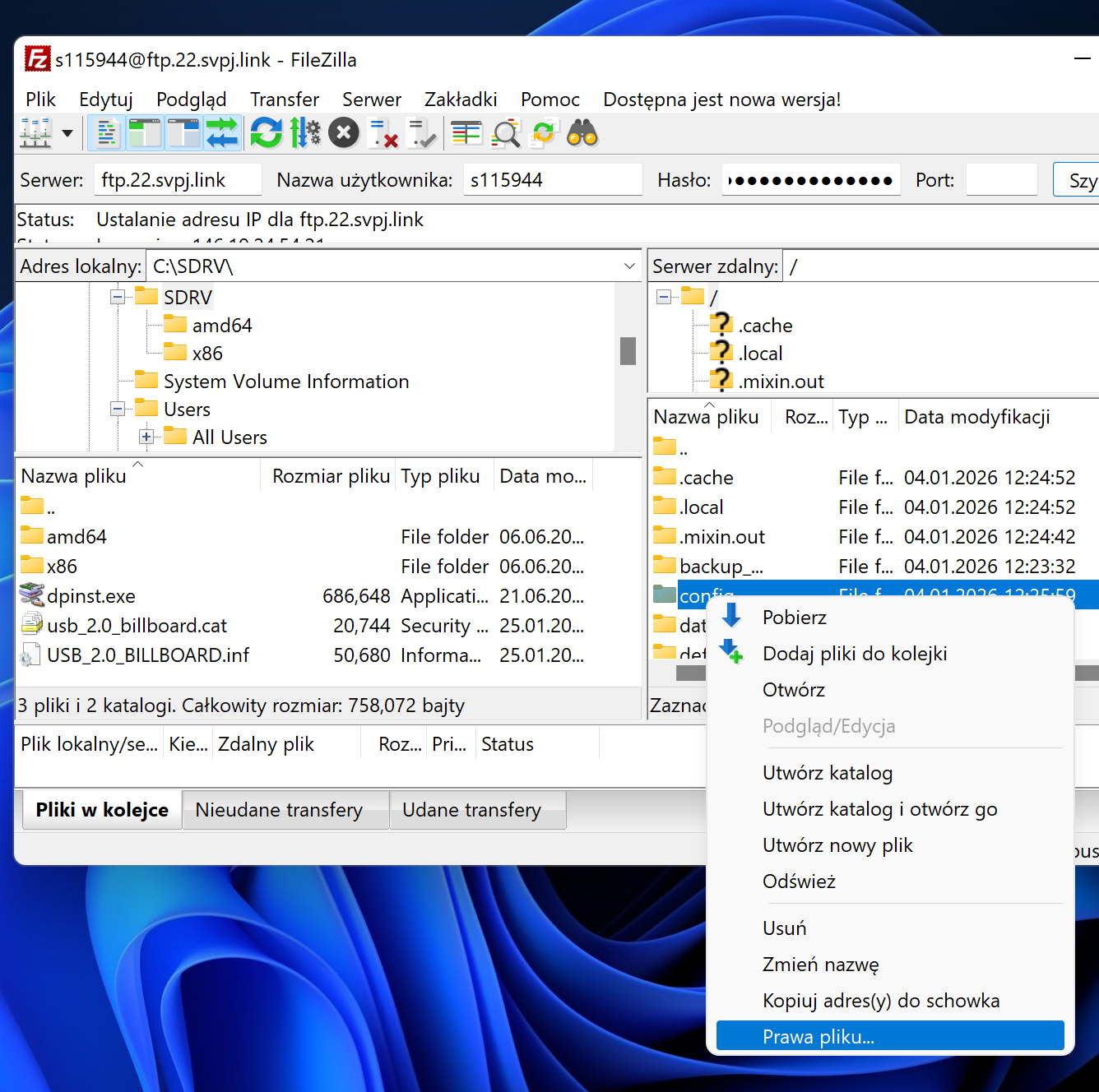
Step 1: Open Context Menu
Right-click on a file or directory and select "File permissions..."
Step 2: Set Permissions
In the dialog box, check the appropriate checkboxes for each user group:
- Owner
- Group
- Public
You can also enter a numeric value directly (e.g., 755, 644).
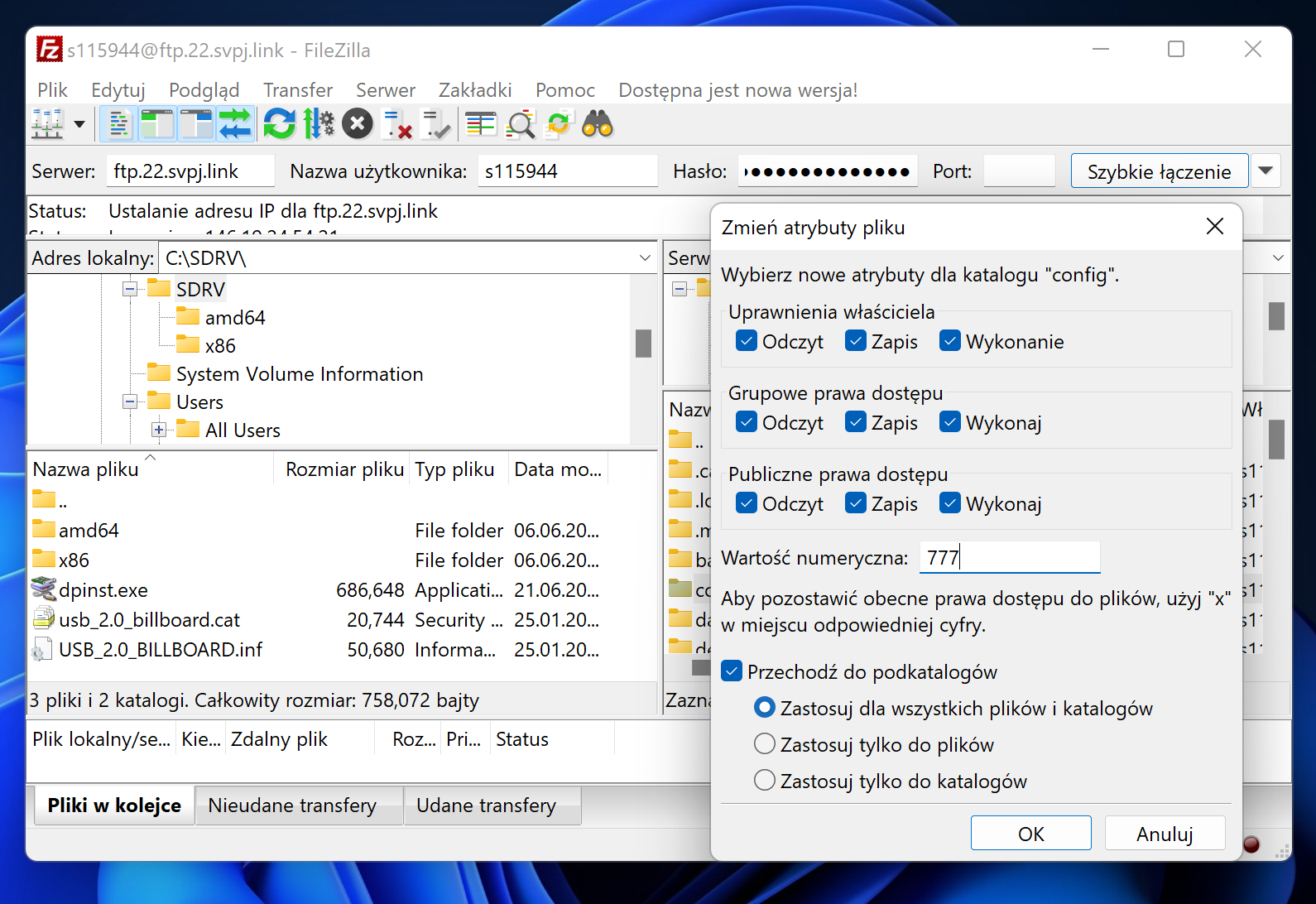
Step 3: Confirm Changes
Click OK to save the new permissions.
Changing Permissions in WinSCP
Step 1: Select File
In the file list, you can see the current permissions in the "Permissions" column.
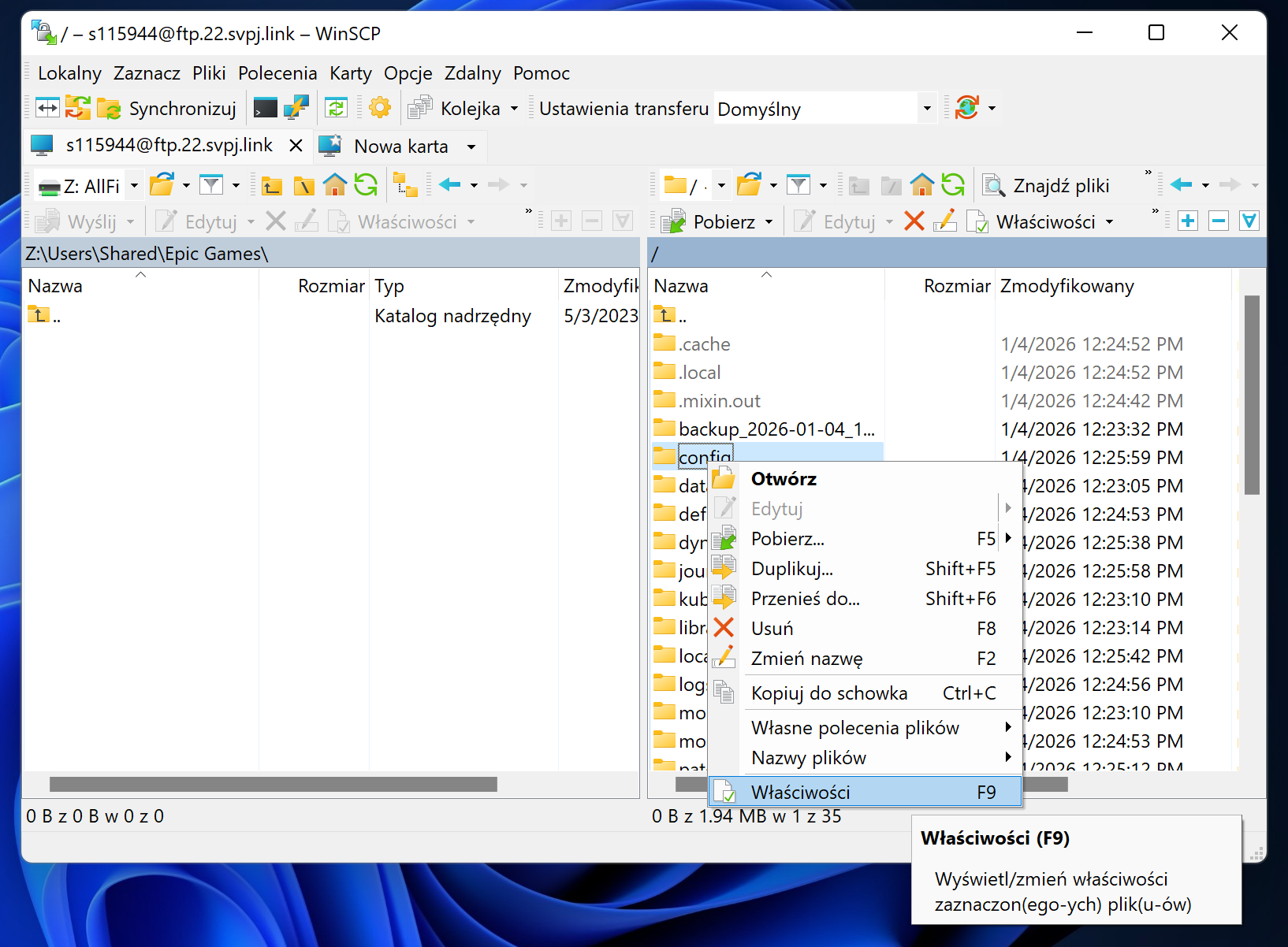
Step 2: Open Properties
Right-click on the file and select "Properties" or press F9.
Step 3: Set Permissions
In the properties window, click the checkboxes for the appropriate permissions or enter a numeric value.
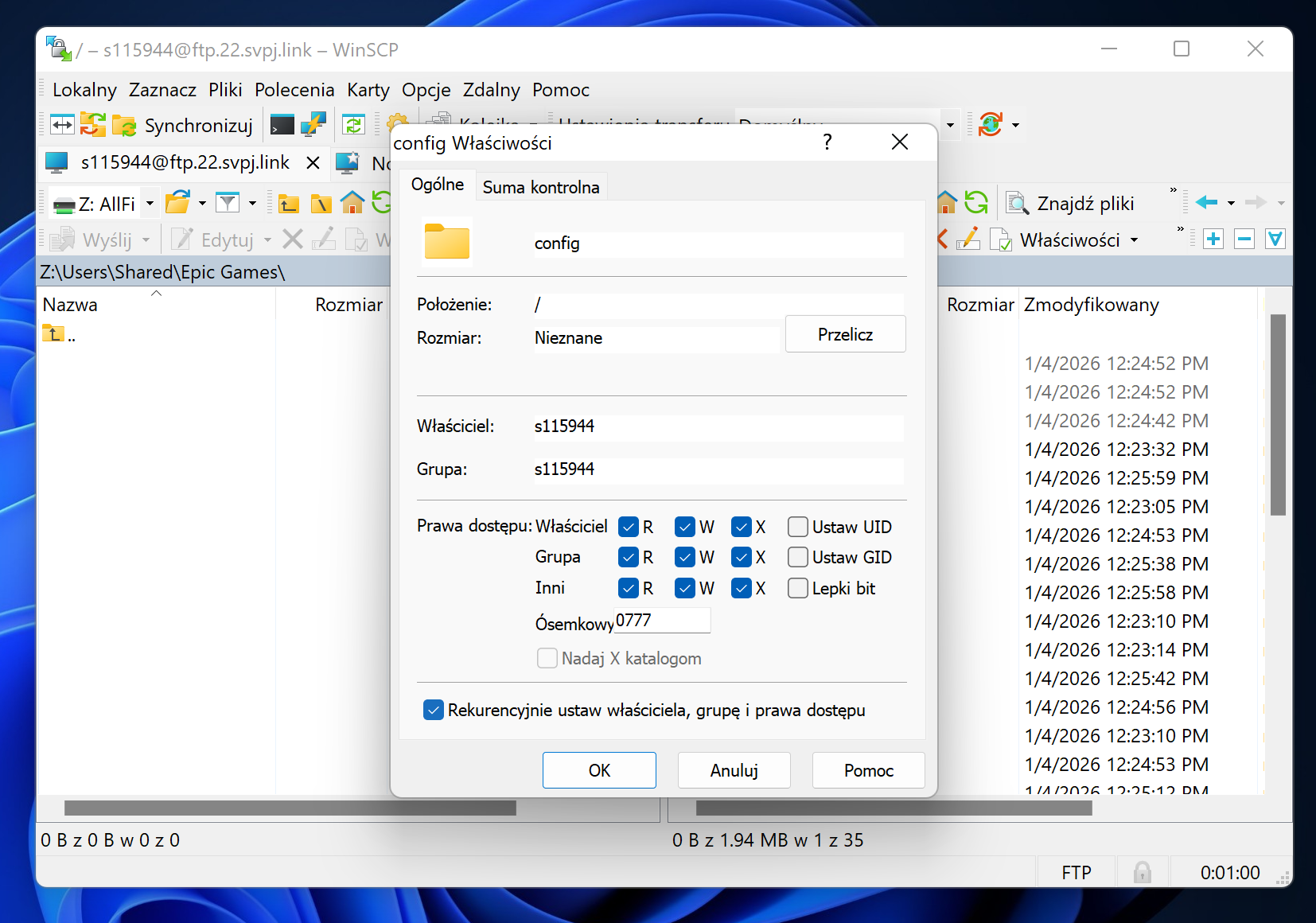
Step 4: Save
Click OK to apply the changes.
Changing Permissions Recursively
To apply permissions to all files and subdirectories in a selected directory, use the recursive option:
In FileZilla
In the permissions dialog box, check the "Recurse into subdirectories" option. You can choose:
- Apply to all files and directories - apply to all files and directories
- Apply to directories only - apply to directories only
- Apply to files only - apply to files only
In WinSCP
In the properties window, check the "Recursively change permissions for subdirectories and files" option or similar, depending on the program version.
⚠️ Warning: Use this option carefully - it will change permissions for all files in the directory and its subdirectories!
Common chmod Values
- 755 - Directories: owner can do everything, others can browse
- 644 - Files: owner can edit, others can only read
- 777 - Full permissions for everyone (⚠️ not recommended for security reasons)
- 600 - Only owner can read and write
Security Notes
⚠️ Avoid setting permissions to 777 unless absolutely necessary. Such permissions allow any user to modify files, which poses a security risk.