Server in Github repository with file synchronization from FTP
This tutorial will show you how to set up a private file repository on Github along with automatic uploading of changes to the server's FTP. This will provide us primarily with backup, change tracking, and update speed.
You'll learn how to use Github/git from numerous tutorials on the internet, here's an example.
Creating a repository with files
We create a new git repository on Github. Check the Private type if we don't want it to be publicly available.
We upload the files of our server that we want to change to the repository. I will be editing the configuration file
of the MTA server mtaserver.conf and the [admin] resource, so my directory structure looks like this:
.
└── mods
    └── deathmatch
        ├── mtaserver.conf
        └── resources
            └── [admin]
The directory structure must reflect the directory structure on FTP, meaning that e.g., the /mods folder must be in the repository
under the same path, not e.g., under /maciek/mods.
Creating Github Actions
We now create a Github Actions file that, after making a change in the repository, will send those changes to FTP.
Creating secrets with FTP authorization data
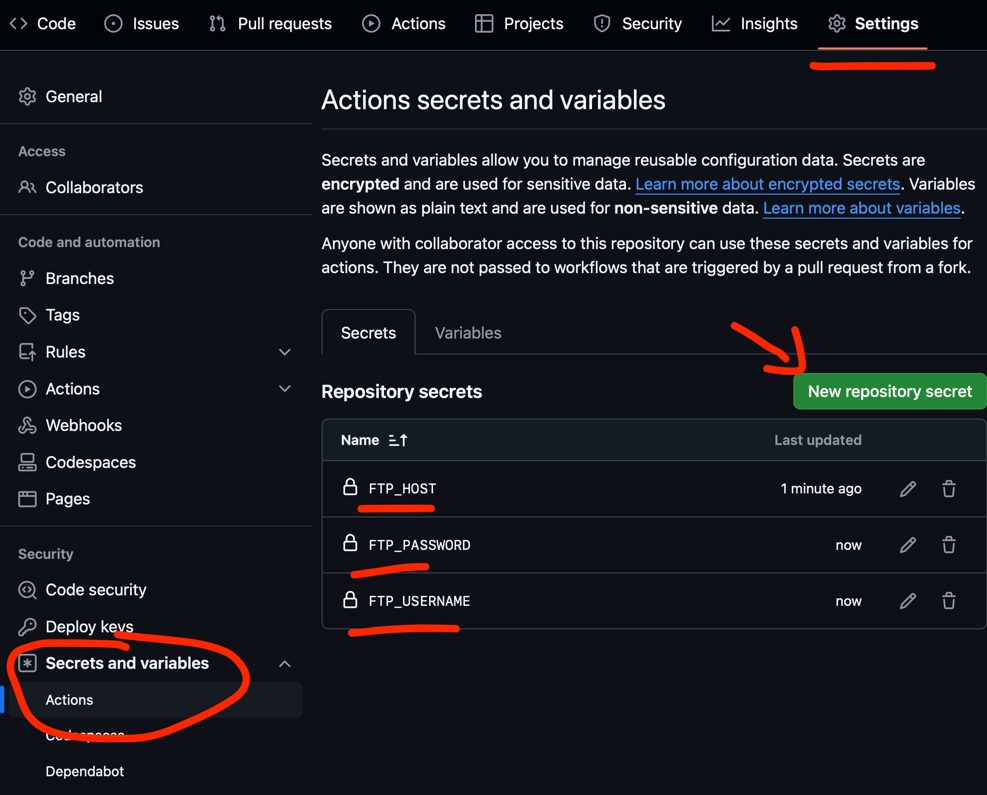
Go to the repository settings on Github (Settings -> Security -> Secrets -> Actions) and add FTP login data according to the pattern:
FTP_HOST- FTP hostFTP_USERNAME- usernameFTP_PASSWORD- password
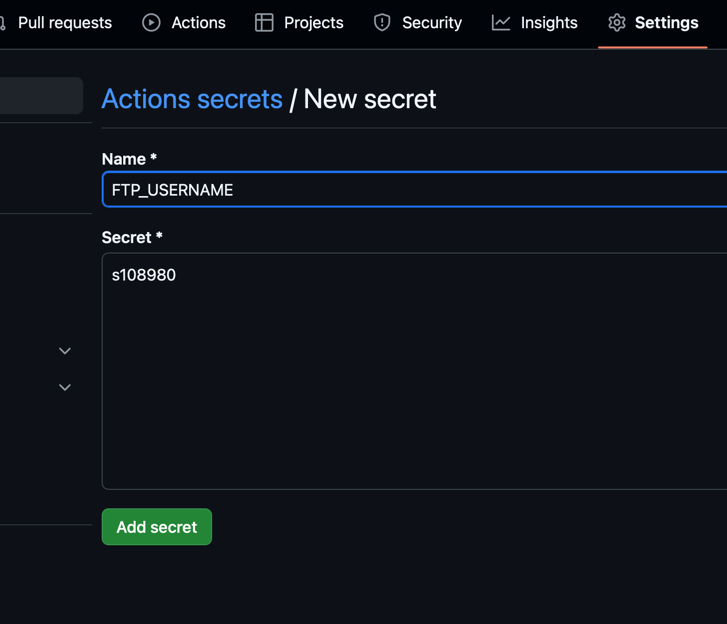
Example of creating the FTP_USERNAME secret:
Creating the file defining the Github Action workflow
Create in the repository the file .github/workflows/ftp-deploy.yml (directory .github, in it directory workflows,
and in it file ftp-deploy.yml) with the content:
on: push
name: 🚀 Deploy to ServerProject on push
jobs:
  web-deploy:
    name: 🎉 Deploy
    runs-on: ubuntu-latest
    steps:
    - name: 🚚 Get latest code
      uses: actions/checkout@v4

    - name: 📂 Sync files
      uses: SamKirkland/FTP-Deploy-Action@v4.3.5
      with:
        server: ${{ secrets.FTP_HOST }}
        username: ${{ secrets.FTP_USERNAME }}
        password: ${{ secrets.FTP_PASSWORD }}
        exclude: |
          **/.git*
          **/.git*/**
          **/resource-cache/**
          **/node_modules/**
          fileToExclude.txt
In the exclude section, you can place all exceptions that you don't want to upload to FTP.
After uploading the file to the repository, a job should automatically start, uploading files from our repository to the server's FTP.
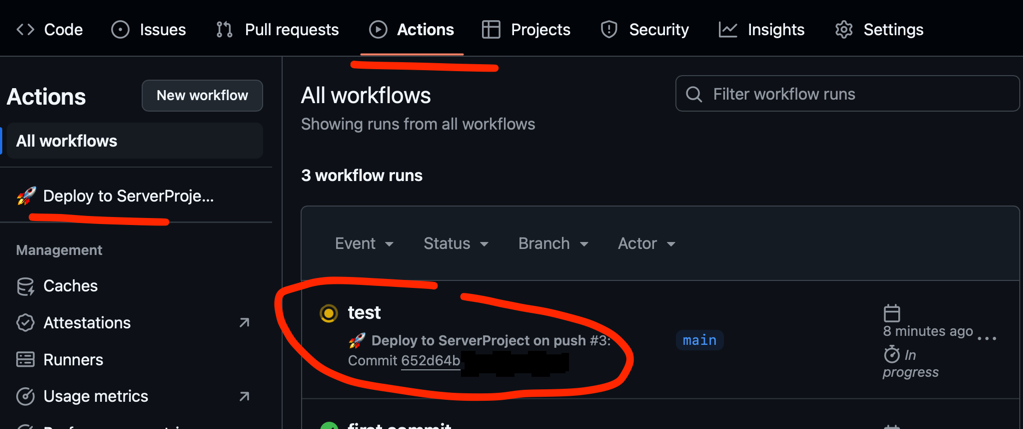
If you get an error, try restarting the Action (Re-run jobs) or create a new commit in the repository.
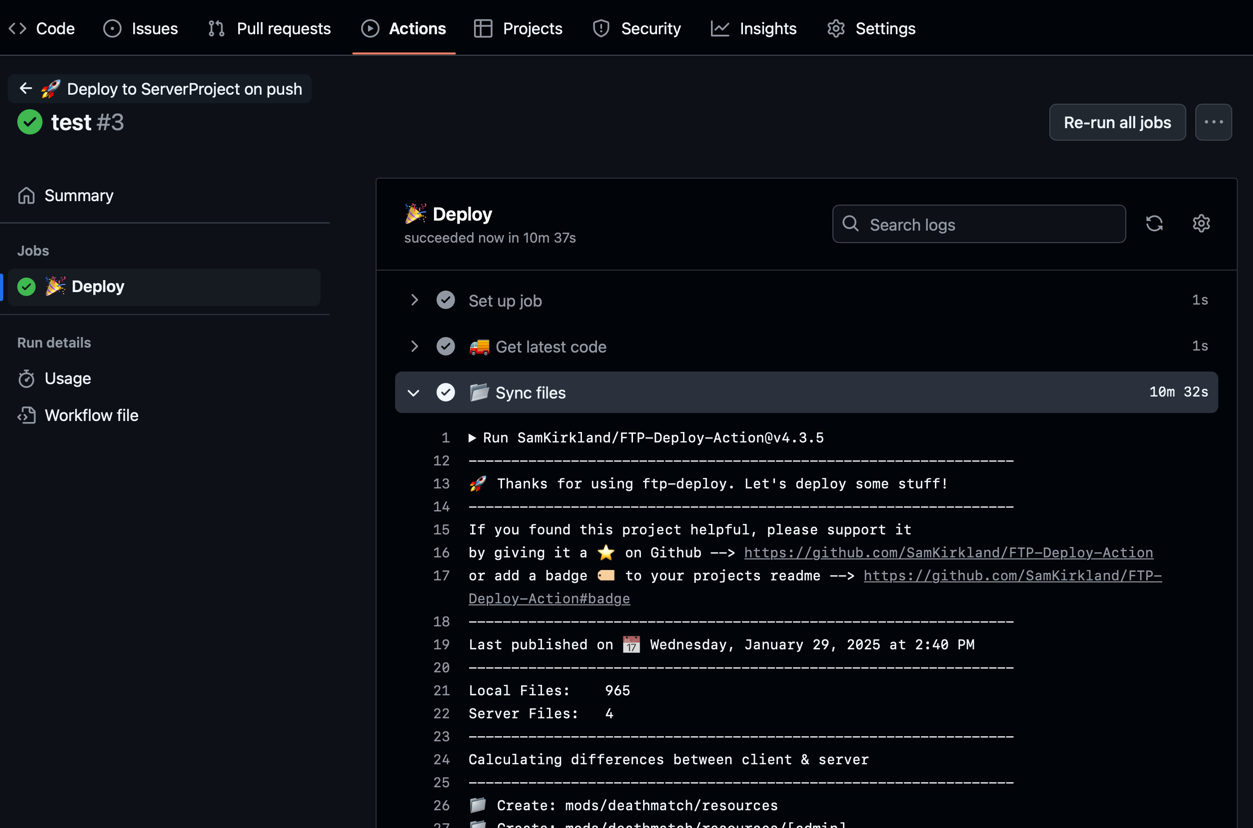
After clicking on the job, you can view the logs. If the operation is successful, a green checkmark will appear:
Don't upload to the repository files that you may not have FTP editing permissions for. In the case of
the MTA server, such a file is /mta-server. This will cause an error during job execution.